
AION 2 Targeting Settings: Tab Priority and Lock Guide
Set up AION 2 targeting with illustrated controls for attack locking, skill auto-targeting, Tab priority and hostile-player keybinds. Compare the menus.
FAQ
How do I stop attacks from locking a target in AION 2?
How do I prioritize enemy players with Tab?
Are these settings tested on the current Global patch?
For AION 2 targeting settings, start with the behavior you want to change: attacks locking onto enemies, skills finding a target, or Tab choosing the wrong opponent. These are separate controls. Changing all three at once makes it harder to tell which option helped.
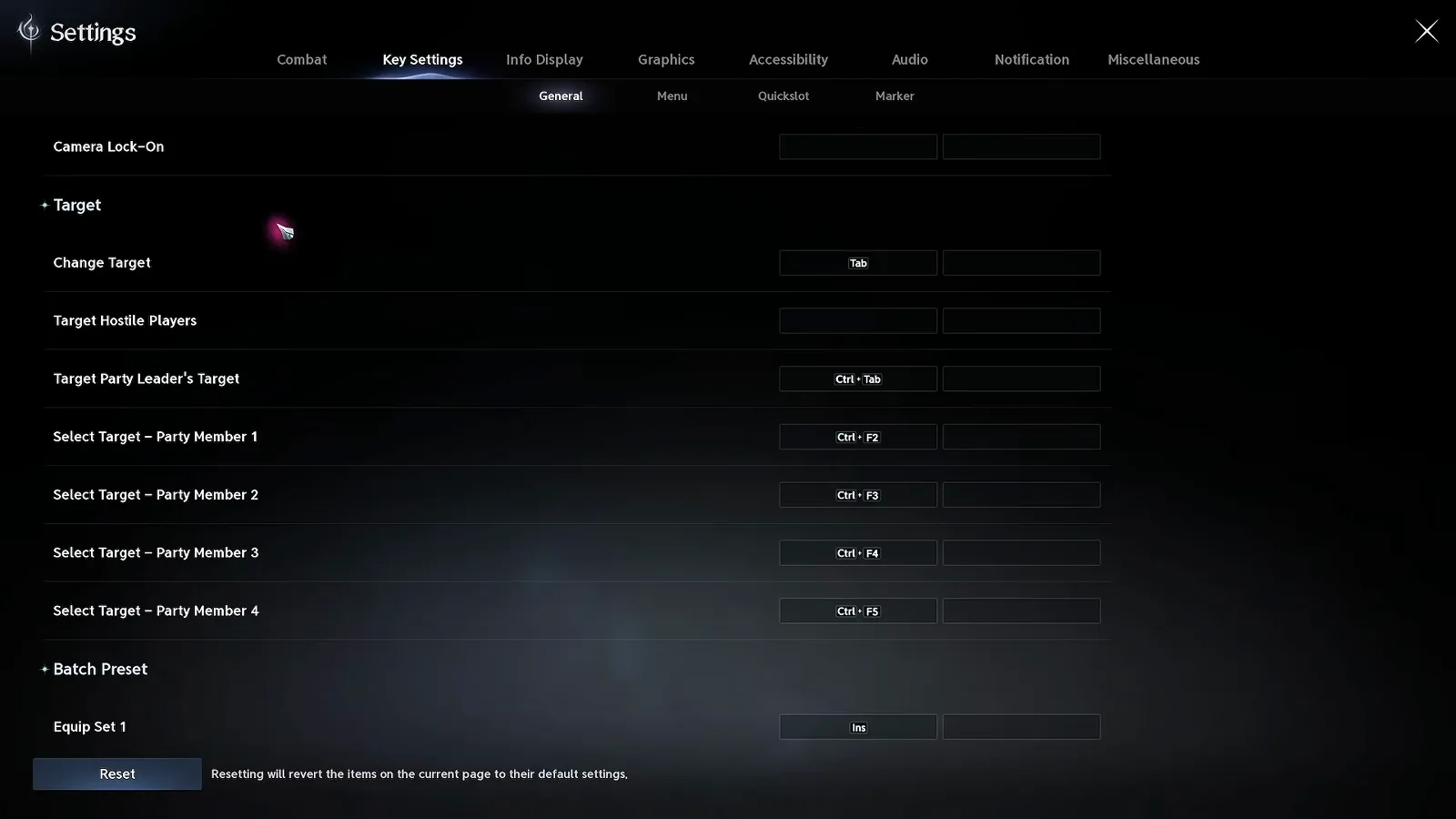
Quick setup: inspect Combat → Controls for attack locking and skill auto-targeting, then Combat → Target Scanning for Tab priority and search direction. Use Key Settings → General → Target for a dedicated hostile-player key. Keep a note of your original values before changing them.
Five targeting controls to compare
1. Choose whether attacks set your main target
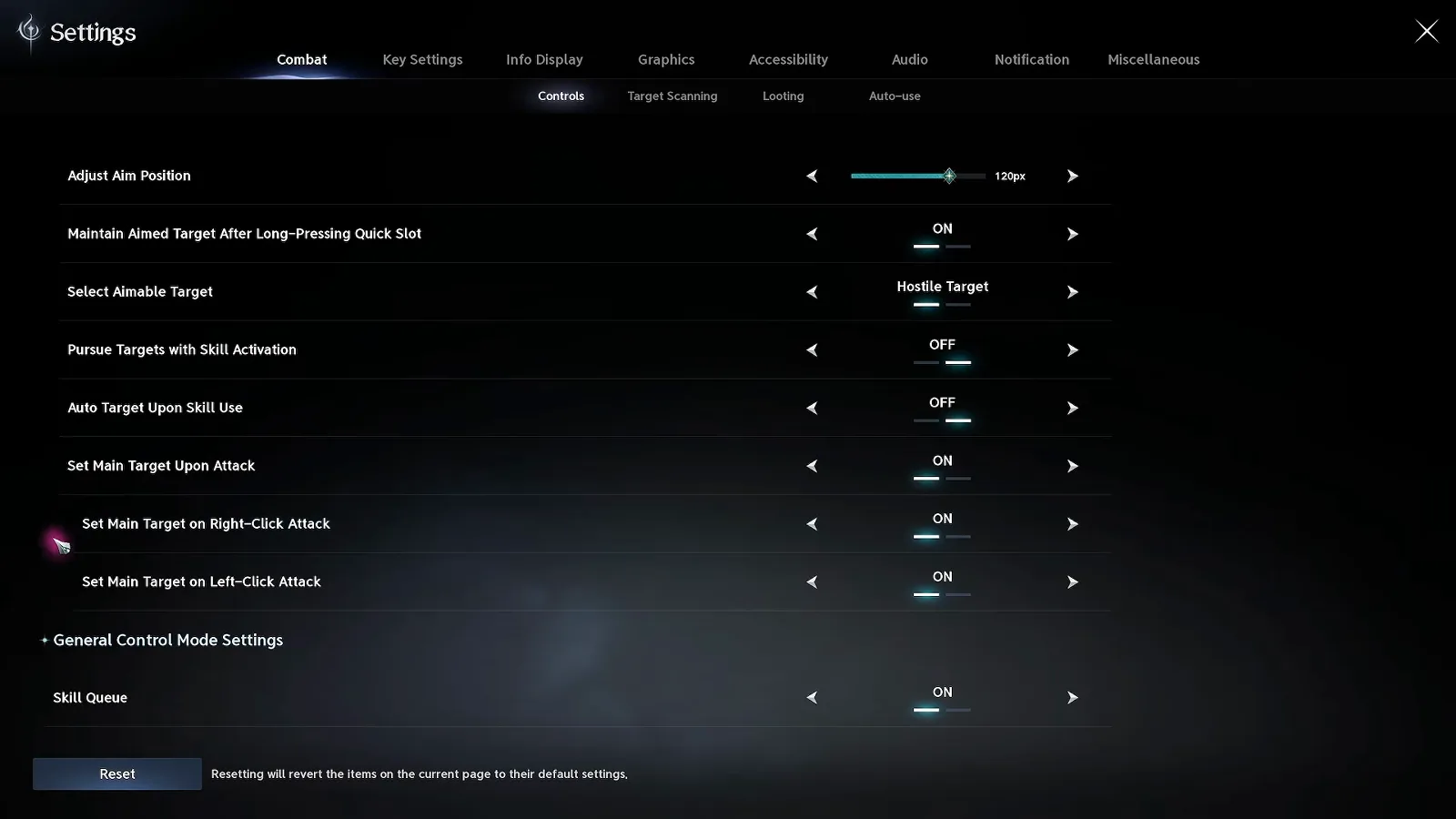
Open Combat → Controls and inspect Set Main Target Upon Attack, including the right-click and left-click attack entries. Grobs prefers disabling automatic attack locking for melee so he can switch targets, while still using Tab when he wants a deliberate lock. The screenshot shows the controls before that change, with the attack options On.
2. Compare automatic targeting when using skills
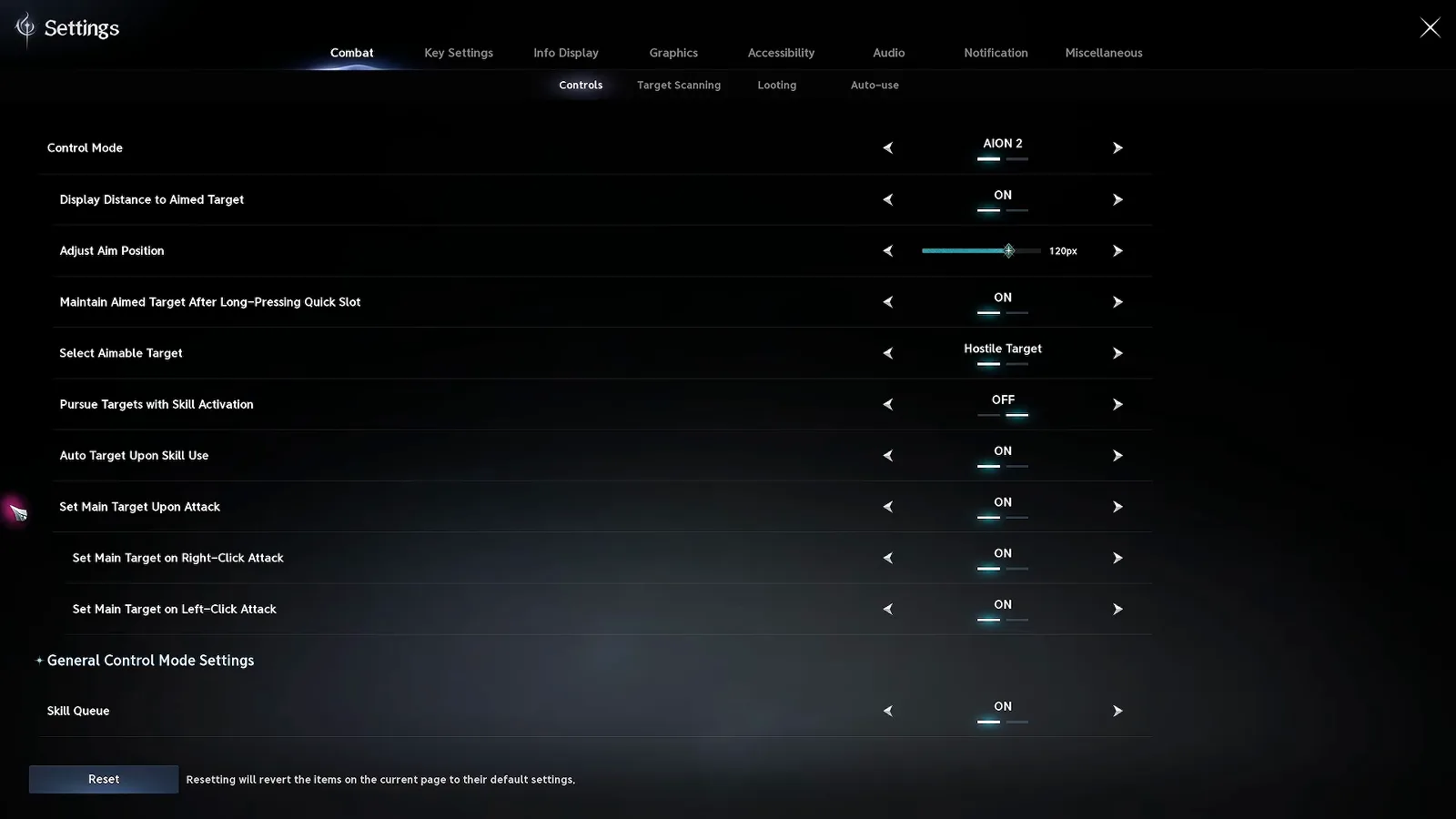
In the same Controls panel, find Auto Target Upon Skill Use. The source enables it for ranged open-world farming so using a skill can acquire a target. Treat this as a situational preference: compare it with your usual target selection before carrying it into a boss fight or PvP.
3. Switch the scanning rule to Priority Ranking
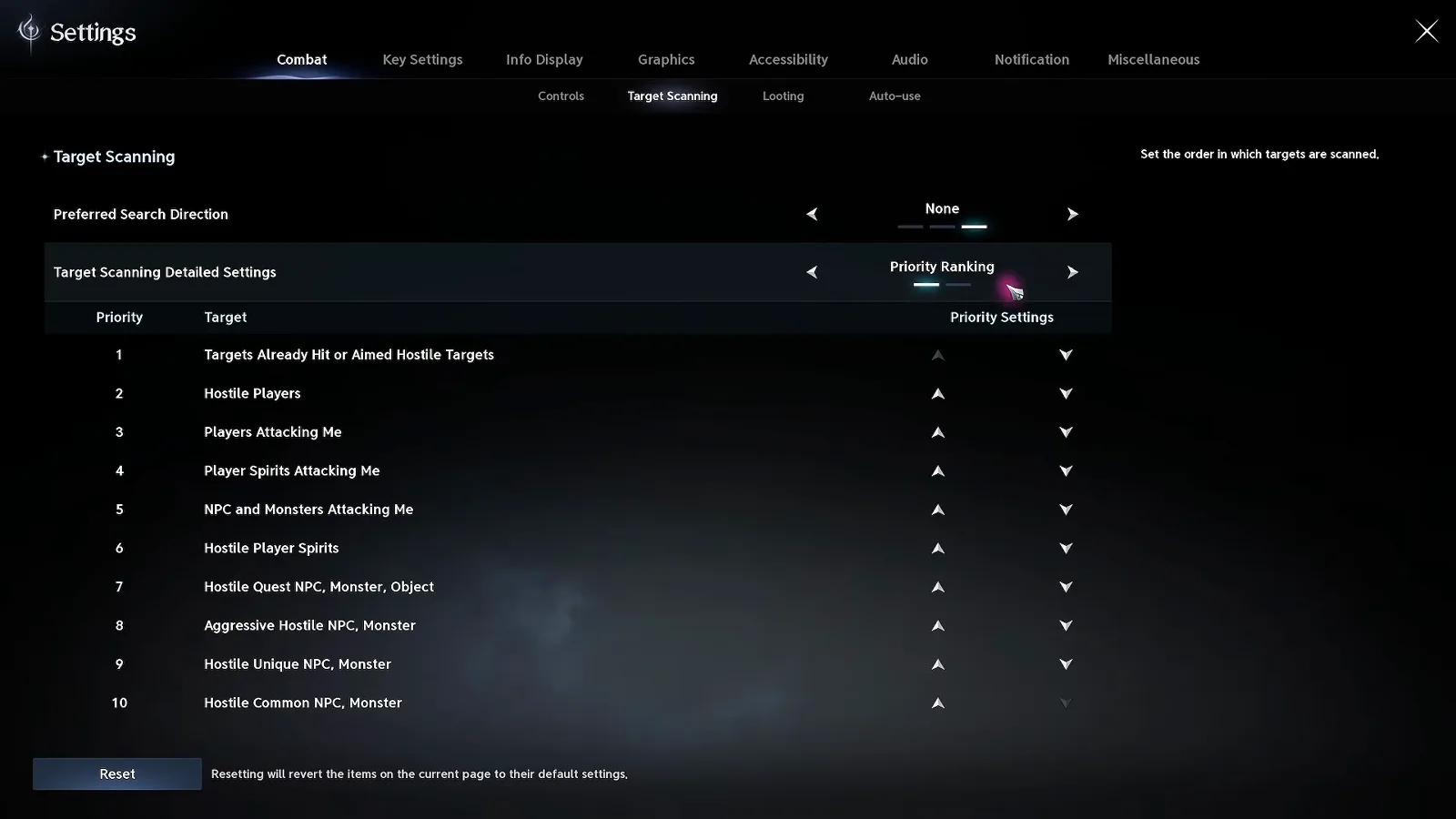
Open Combat → Target Scanning. Change Target Scanning Detailed Settings from Closest First to Priority Ranking to use the ordered categories below. The source then raises Hostile Players to first place for encounters that mix players and monsters. This frame captures the ranking mode before the category order is finished.
4. Match scanning to the camera direction
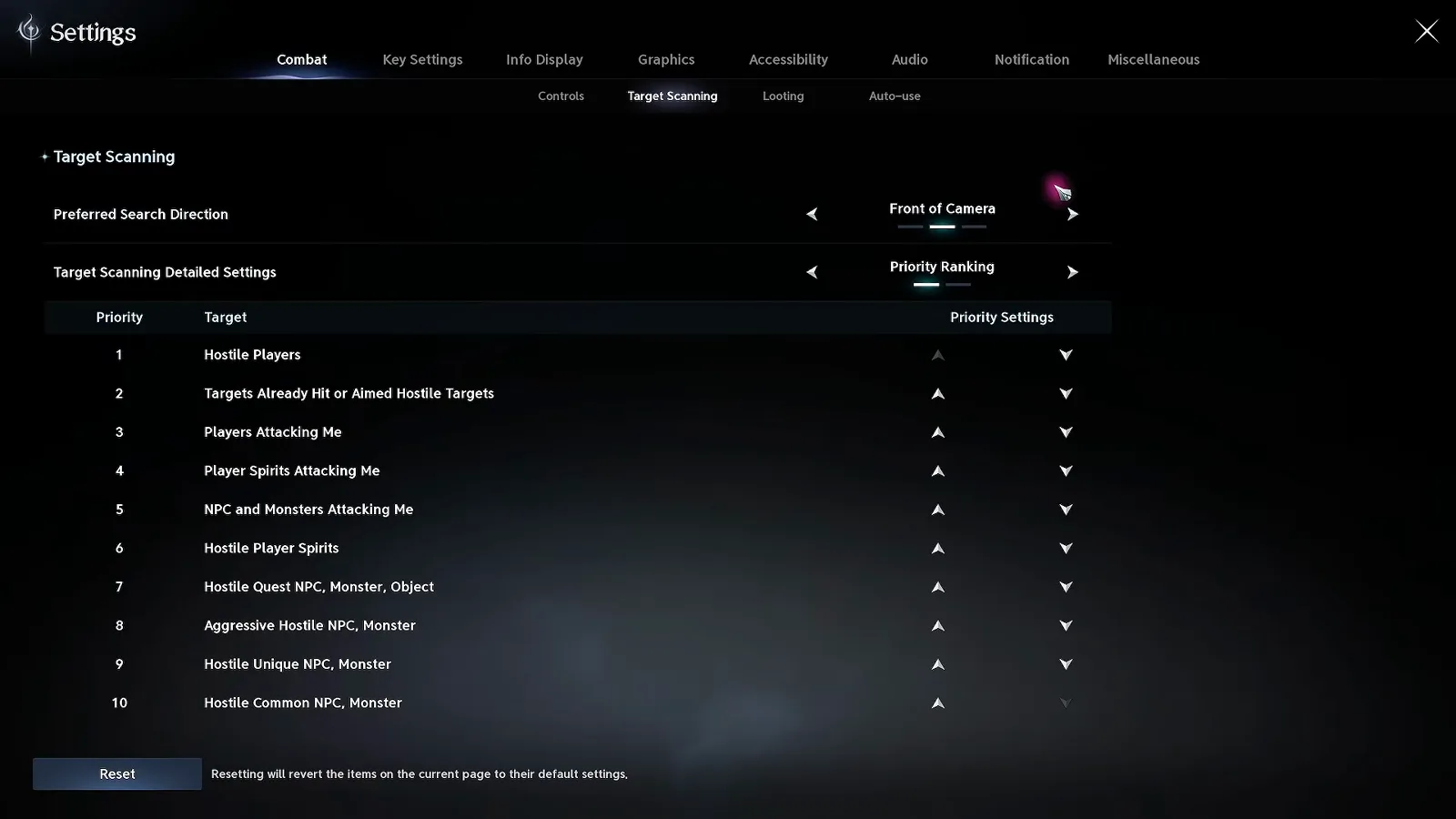
Set Preferred Search Direction to Front of Camera if you want the source’s camera-oriented approach. The final menu shown here also has Hostile Players in first place. Grobs uses this combination to favor opponents in the direction he is looking; it is a PvP preference rather than a required setting for every activity.
5. Inspect the dedicated hostile-player keybind
Open Key Settings → General and scroll to Target. The source shows Change Target on Tab and an empty Target Hostile Players binding. Assign a comfortable key if you want this separate action; Grobs says he personally relies on priority ranking instead. Check for conflicts before saving a new binding.
Check the result before your next activity
Return to a safe practice area and compare one change at a time. Check whether an attack creates the lock you expect, whether a skill selects a target without a manual choice, and whether Tab follows your intended priority. This test sequence is our editorial recommendation; it is not a measured combat benchmark.
If you switch between ranged questing and melee PvP, revisit these preferences instead of assuming one preset fits both. Keep the English names above as visual references when matching a translated menu; do not treat our explanations as official localized labels.
Continue preparing your character
Use the beginner checklist for your first session. Compare melee handling with the Gladiator guide or ranged play with the Ranger guide. Before group content, review gear enhancement and the illustrated Vakron Sky Island route.
Related Articles
classes
AION 2 Assassin Build Guide: Global PvE, PvP and Solo
Build an AION 2 Assassin around marks, burst windows and safe target access. Compare Global skill priorities, solo pulls and coordinated PvP trade-offs.
classes
AION 2 Chanter Build Guide: Global PvE, PvP and Solo
Build an AION 2 Chanter for melee damage and party support. Check Global skill priorities, Cleric buff overlap, solo comfort and coordinated PvP decisions.
classes
AION 2 Cleric Build Guide: Global PvE, PvP and Solo
Build an AION 2 Cleric with reliable damage and manual recovery. Compare Global healing priorities, Chanter support overlap, solo adjustments and PvP positioning.
Was this helpful?
Thanks for the feedback!